17 April 2019

How to run Open Live Writer with blogspot.com with the help of Chocolatey

I havent written anything for a long time. One of the reasons was getting new computer without Live Writer on it. Okay, Live Writer is dead and now you will use Open Live Writer, but suddenly it stopped working with blogspot.com. I got instructions from this link https://www.sqlservercentral.com/blogs/how-to-get-open-live-writer-working-with-blogger

I will summarize it, because who knows how long the link is working and there is some typos also present:

Install Open Live Writer with my favourite software installer Chocolatey (see https://chocolatey.org/ for more information). After getting Chocolatey to work, open Administrative Command Prompt and run the following command:

cinst openlivewriter --version=0.5.1.2 -y

After running the command you will have the correct version, which works with blogspot.com

If you want to uninstall openlivewriter, then use this command:

cuninst openlivewriter -y

If you want to install Chocolatey with only one command line, use this command

powershell -ExecutionPolicy bypass "iwr https://chocolatey.org/install.ps1 -UseBasicParsing | iex"

27 October 2017

One-liner for installing Microsoft Updates in PowerShell

The following one-liner is good for installing missing Microsoft Updates / Windows Updates.

First, Start PowerShell as administrator and then type:

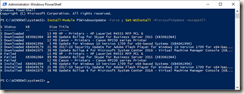
Install-Module PSWindowsUpdate -Force ; Get-WUInstall –MicrosoftUpdate –AcceptAll –Install

The result will look like this:

image

05 September 2017

DHCP server migration between Windows Server 2008+ servers

Log on to old DHCP server, open administrative command prompt and type

netsh dhcp server export \\newserver\c$\dhcp.txt all

and stop and disable the dhcp server service on old server.

Then log on to new server, install DHCP service and authorize it

image

Then open administrative command prompt on new server and type

netsh dhcp server import \\newserver\c$\dhcp.txt all

or just

netsh dhcp server import c:\dhcp.txt all

If you are using DHCP relay in firewalls, then you might need to reconfigure them also to point to new server.

26 May 2017

How to manually add Java exception sites


Type in Start + Run window:

notepad %localappdata%low\sun\java\deployment\security\exception.sites

image

Then type all the addresses you want to open with Java without security error. It’s useful for example with Intel server motherboards.

image

11 May 2017

How to convert dynamic IP configuration to static using PowerShell

For example to start running DHCP or DNS server, you need to have static IP configuration. If you already have an DHCP Server configured IP configuration, you might want to use the same IP address and DNS configuration. To do this automatically, use this script:

$nic = Get-WmiObject -Class Win32_NetworkAdapterConfiguration | ogv –PassThru

#convert to static
$IPAddress = $nic.IPAddress[0]
$IPSubnet = $nic.IPSubnet[0]
$DefaultIPGateway = $nic.DefaultIPGateway
$DNSServerSearchOrder = $nic.DNSServerSearchOrder
$nic.EnableStatic($IPAddress, $IPSubnet)
$nic.SetGateways($DefaultIPGateway)
$nic.SetDNSServerSearchOrder($DNSServerSearchOrder)

#enable dhcp for ip and dns
$nic.EnableDHCP()
$nic.SetDNSServerSearchOrder()

First section is for selecting the correct network adapter. By running the second section, the current information is copied as static configuration. By running the third part, DHCP default configuration is set.

05 May 2017

How to remove empty folders using PowerShell

To remove empty folders from your D: drive, use following command:

$folders = gci d:\ -r | ? PSIsContainer -eq $True
$folders.Count
$emptyfolders = $folders | ? {$_.GetDirectories().Count -eq 0 -and $_.GetFiles().Count -eq 0}
$emptyfolders.Count
$emptyfolders | select * | ogv
$emptyfolders | Remove-Item

It has some room for improvement (i had to do multiple passes, because after cleaning up some other folders appeared empty (before they contained only empty folders inside it). And dont use it on C: drive, there might be useful empty folders.

01 May 2017

Schedule nightly restart using PowerShell

To register a nightly job:

Register-ScheduledJob restart {Restart-Computer -Force} -Trigger (New-JobTrigger -At 01:00 -Daily) -ScheduledJobOption (New-ScheduledJobOption -RunElevated)

To unregister the nightly job:

Unregister-ScheduledJob restart

To view jobs, use taskschd.msc (Task Scheduler) and go to \Microsoft\Windows\PowerShell\SceduledJobs folder and fine tune them if needed.